9 November 2026
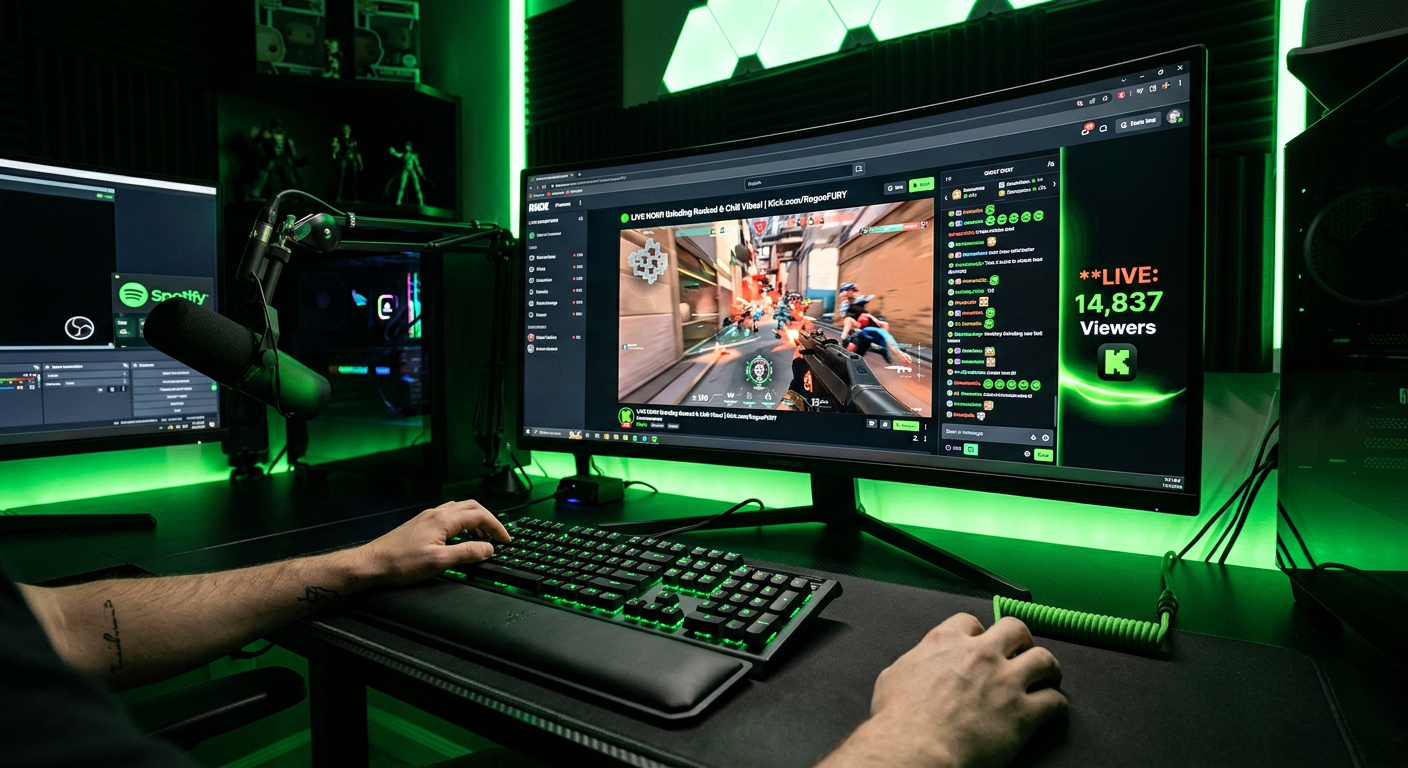
How to Stream on Kick in 2026 — The Setup Guide That Actually Gets You Live
Most "how to stream on Kick" guides are written by people who have never actually struggled to get viewers. They'll tell you to "be consistent" and "engage with your chat" as if the problem is your attitude rather than the fact that Kick buries zero-viewer streams where no human has ever scrolled.
This guide is different. It covers the actual setup, the actual problem every new Kick streamer hits, and the actual solutions — including the ones other guides skip because they're worried about being preachy.
What You Actually Need (And What You Don't)
The internet makes this look expensive and complicated. It isn't. Here's what you genuinely need to go live on Kick:
- A PC that can run your games — if it runs the game, it can probably stream it. Modern hardware handles both simultaneously without issues.
- OBS Studio — free, open source, what every serious streamer uses. Download from obsproject.com.
- A decent microphone — this matters more than your webcam, your overlays, and your PC specs combined. A £50-80 USB mic is enough to start. Buy this before anything else.
- Upload speed of at least 10 Mbps — check yours at fast.com. Plug into ethernet if you're on WiFi. Dropped frames are the fastest way to lose viewers.
- A Kick account — free, takes 2 minutes at kick.com.
Webcam? Optional. Fancy overlays? Later. Stream alerts? Nice to have eventually. None of it matters until you're actually live and people are watching. Get the basics working first.
Connecting OBS to Kick — The Actual Steps
- Download and install OBS Studio from obsproject.com
- Run the Auto-Configuration Wizard on first launch — OBS detects your hardware and sets the right bitrate and resolution automatically. Let it do its job.
- Log into Kick → Creator Dashboard → Settings → Stream URL & Key → copy your Stream Key
- In OBS: Settings → Stream → Service → Custom → paste your Stream Key
- Add a Game Capture source in OBS to capture your game
- Hit Start Streaming
That's it. The Auto-Configuration Wizard handles the technical stuff. Don't spend your first evening reading about bitrate settings — get live first, optimise later.
Settings that actually matter:
- Resolution: 1080p60 if your PC can handle it, 720p60 if not. Both are fine.
- Bitrate: OBS will suggest this. Trust it for now.
- Encoder: Use NVENC if you have an NVIDIA GPU — it handles encoding on your GPU and takes load off your CPU
- Audio sample rate: 48kHz, stereo. Set it, forget it.
Category Selection — The Most Underrated Decision in Streaming
Before you go live, you need to pick a category. This matters more than your production quality, your schedule, your personality, and probably your life choices combined.
Here's why: Kick's browse page sorts streams by live viewer count. Highest at the top, zero at the bottom. If you stream Fortnite as a new creator, you're competing with 400+ channels. With zero viewers you're on page 9 of that category. Nobody is going to find you there.
The move: find categories where the top stream has 20-50 viewers. With 10 viewers you can appear in the top 10 of a small category. Top 10 means real people actually see your stream. That's the entire game in the early days.
Check the Kick browse page before every stream. Pick the category where you can rank highest. This single decision changes everything.
The Problem Nobody Tells You About
You set everything up. OBS is running. Your mic sounds decent. You go live. And then you sit there with zero viewers for two hours wondering what you're doing wrong.
Nothing. You're doing nothing wrong. This is the cold-start problem and every single Kick streamer has been exactly where you are.
Kick's browse page buries zero-viewer streams. You can't get discovered because you have no viewers. You can't get viewers because you're not being discovered. It's a loop, and "just keep streaming" is not a solution — it's a way to spend six months on page 9.
What actually breaks the loop:
TikTok clips. Clip your best moments and post them within an hour of your stream ending. External traffic from TikTok is how the fastest-growing Kick channels built their initial audiences. One clip that gets 20,000 views can add 50 followers overnight. Those followers become viewers. Those viewers push you up the browse page.
Raiding and being raided. Find streamers in similar categories at a similar size. Raid each other at the end of streams. Even 5 viewers transferred from a raid can be the difference between appearing in the top 10 and disappearing.
A viewer floor. This is the part other guides skip. A lot of new Kick streamers who made it fast used a viewer boost service in the early weeks — enough viewers to appear above the browse page fold while real organic growth builds underneath. When someone browsing Kick sees your stream with 30 viewers instead of 0, they click it. Some of those people stay. Some follow. The organic audience builds on top of the boost.
viewbotting.io does this for Kick — residential IP viewers so it looks natural, AI chatbots included so your chat isn't dead, dashboard you control in real time. Use code LAUNCH20 for 20% off any package. There's also a free trial — 25 viewers, no card needed, so you can see it working before spending anything.
Your Pre-Stream Checklist
- Category checked — you can rank in top 20 with your current viewer count ✓
- Stream title set — specific and descriptive, not just the game name ✓
- Microphone tested — record 30 seconds and listen back ✓
- OBS test stream run — no dropped frames, audio balanced ✓
- VOD recording enabled — clips and highlights come from VODs ✓
How Kick Pays You
Once you hit Kick Affiliate — which requires 75 followers, 5 hours streamed, 3 average concurrent viewers across 3 days — subscriptions unlock. You keep 95% of every subscription. At $4.99/month per subscriber that's $4.74 in your pocket per sub, every month.
Compare that to Twitch's 50/50 split where the same subscription pays you $2.50. Same grind, same audience, nearly double the money. That's why Kick is worth the effort of figuring out the cold-start problem.
Most consistent new streamers hit Affiliate within 4-8 weeks. The viewer average is the main bottleneck — which brings everything back to the browse page problem above.
Frequently Asked Questions
How do I start streaming on Kick?
Create a Kick account, download OBS Studio, copy your Stream Key from your Kick Creator Dashboard, paste it into OBS under Settings → Stream → Custom, add a Game Capture source, and hit Start Streaming. The OBS Auto-Configuration Wizard handles the technical settings on first launch.
What upload speed do I need to stream on Kick?
Minimum 10 Mbps for 720p, 15 Mbps or more for 1080p60. Use a wired ethernet connection rather than WiFi to avoid dropped frames.
Do I need a webcam to stream on Kick?
No. Many successful Kick streamers don't use webcams. A good microphone matters far more than a webcam — prioritise audio quality first.
How do I get viewers on Kick as a new streamer?
Category selection is the most important factor — stream in categories where you can rank in the top 10-20 by viewer count, not in saturated categories with hundreds of channels. Post TikTok clips of highlights for external traffic. A viewer boost in the early weeks helps break the cold-start loop while organic growth builds.
How long does it take to make money on Kick?
Most consistent streamers hit Kick Affiliate within 4-8 weeks, which unlocks subscriptions at a 95/5 split. The bottleneck is averaging 3 concurrent viewers — solvable with the right category selection and a viewer floor in the early days.
Ready to boost your stream?
Start your free trial — 25 viewers for 1 hour, no card required.
Start free trial →